

Adding Team Members & Role Permissions
Empower shift and branch managers to resolve customer complaints without exposing sensitive billing data or granting review deletion rights.
1Team Delegation & Security Architecture
Running a busy storefront requires fast response times when private complaints arrive. GetReview enables business owners to delegate review triage to on-duty branch managers while maintaining strict audit trails and zero risk of review tampering.
Zero Delete Access
Managers cannot hide or delete negative reviews — ensuring accurate operational reporting for owners.
Branch Isolation
Managers only see feedback and alerts for their assigned branch location, preventing cross-store data leakage.
Activity Attribution
Every CRM status update (Won, Lost, Callback toggled) records the manager’s name for internal accountability.
2Adding Branch Managers
You can create a new manager account in seconds directly from the Branch Team tab of your dashboard.
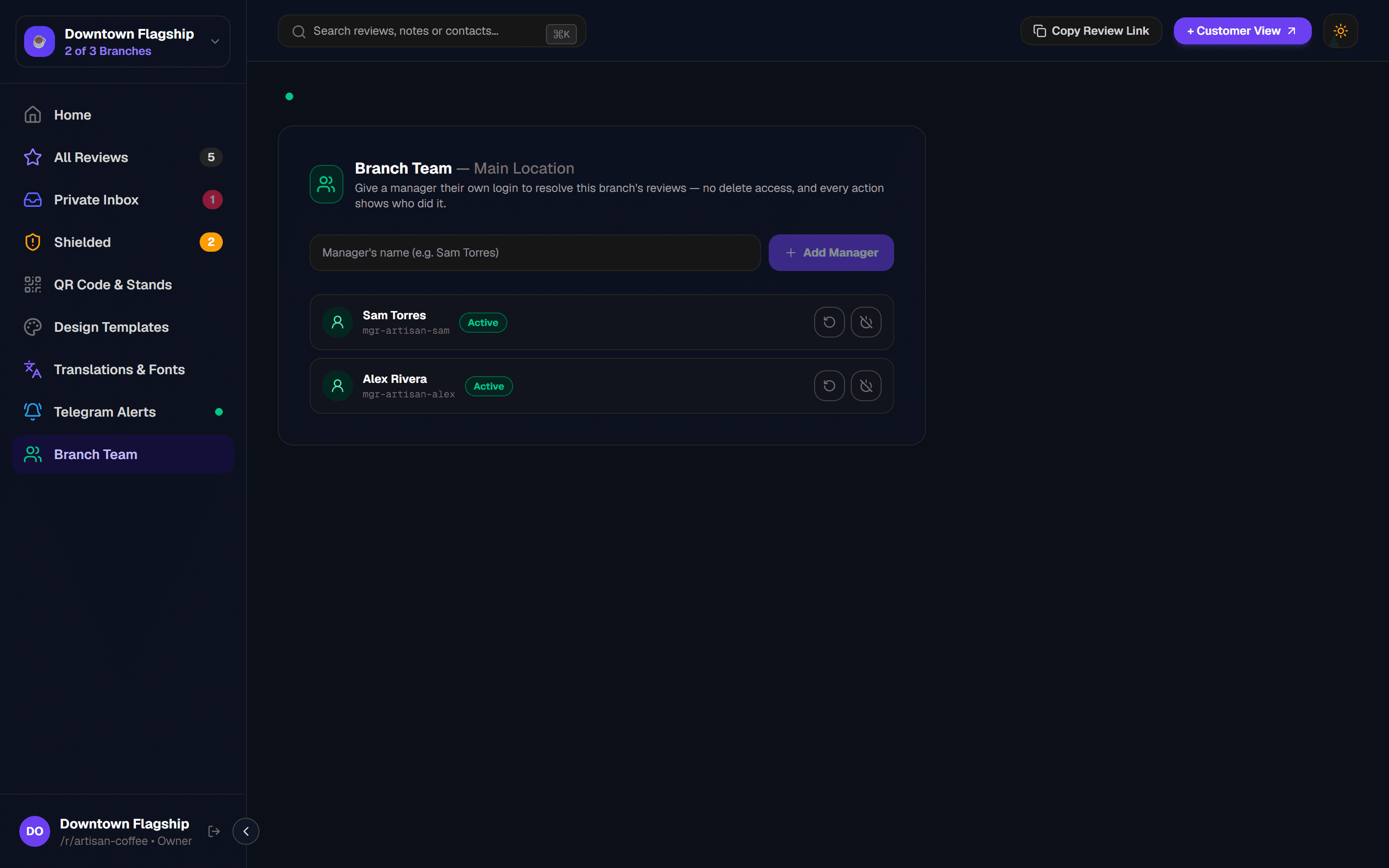
Select the Desired Branch
Use the top-left branch switcher to select the store location where the new manager works.
Enter Manager Name & Click Add
Type the manager’s full name into the input field and click "+ Add Manager".
Share Credentials & Login Portal
GetReview creates a unique username handle (e.g. mgr-artisan-sam) and temporary password. Team members sign in at /manager-login to manage this branch.
3Roles & Permission Matrix
Compare permissions between the Business Owner and Branch Manager roles to understand access boundaries:
| Capability / Feature | Business Owner | Branch Manager |
|---|---|---|
| View Private Inbox & Low-Rating Reviews | ✓ All Locations | ✓ Assigned Branch Only |
| Update CRM Resolution (Won / Lost / No Answer) | ✓ Allowed (All Branches) | ✓ Allowed (Assigned Branch) |
| Toggle Customer Callback Status | ✓ Allowed | ✓ Allowed |
| Print QR Table Stands & Download Assets | ✓ Allowed | ✓ Allowed |
| Configure Telegram Incident Alerts | ✓ Allowed | ✗ Read Only |
| Customize Review Templates & Translations | ✓ Allowed | ✗ Read Only |
| Delete Reviews & Modify Google Place ID | ✓ Allowed | ✗ Blocked |
| Add, Reset & Revoke Branch Managers | ✓ Allowed | ✗ Blocked |
4Multi-Location Branch Scoping
If your business operates across multiple storefronts (e.g. Downtown Flagship, Westside Mall, Airport Terminal), team members are automatically scoped to their designated branch:
Multi-Branch Management
5Resetting & Revoking Access
Maintain strict security hygiene when employees change roles or depart:
Password Reset
Click the circular refresh icon next to any manager to regenerate a fresh password if a team member forgets their login.
Instant Revocation
Click the disable icon to instantly deactivate a manager’s credentials and invalidate all open browser sessions.
6Operational Delegation Standards
Follow these operational recommendations to maximize customer recovery:
Assign Shift Supervisors
Ensure at least one on-duty manager per shift has active access to the Private Inbox for instant triage.
15-Minute Response SLA
Train managers to reach out to customers requesting a callback within 15 minutes of feedback submission.
Update CRM Outcomes
Always mark whether a complaint was "Won" or "Lost" so weekly recovery metrics remain accurate.
Monthly Access Audits
Review the Branch Team roster monthly to remove seasonal or former staff members.
7Team Management FAQs
Next Guide