

Registering Your Business & Acceptance Guidelines
A visual step-by-step walkthrough on how business owners register their establishment on GetReview, verify ownership via email OTP, and review our platform compliance terms.
https://getreview.app/setup
1Prerequisites Before You Begin
Setting up your account takes less than 60 seconds. Make sure you have the following ready:
Active Email
A real business or personal inbox to receive your 6-digit confirmation PIN.
Business Name
Your exact brand or store name as shown on Google Maps / storefront.
Secure Password
At least 8 characters (combination of letters, numbers, and symbols recommended).
2Step 1: Fill Out Account Details
Navigate to /setup. Fill in the four required fields:
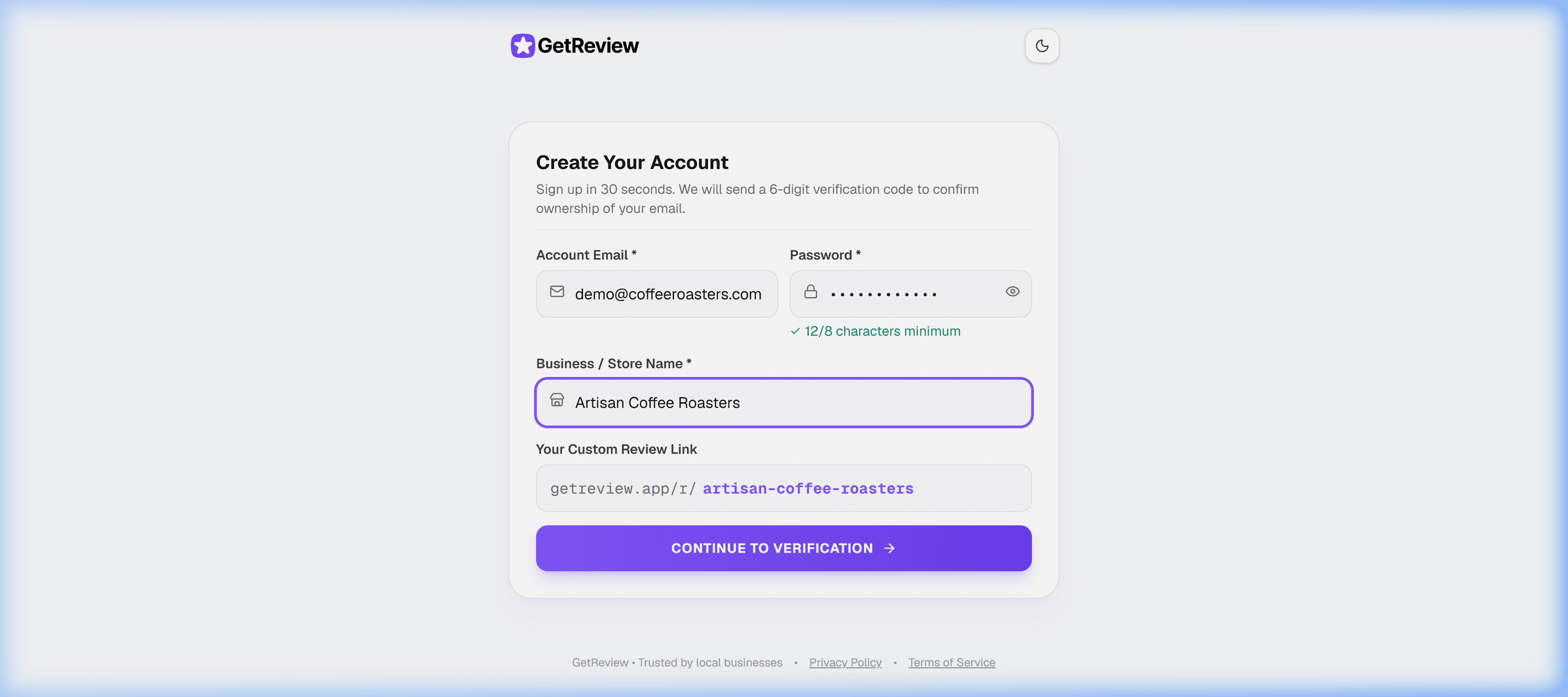
Custom Slug Recommendation
artisan-coffee or smile-dental-ny). Customers will see this URL when scanning your NFC stand or QR code.3Step 2: Verify 6-Digit Email OTP
After clicking Continue to Verification, GetReview sends a 6-digit confirmation code directly to your email inbox.
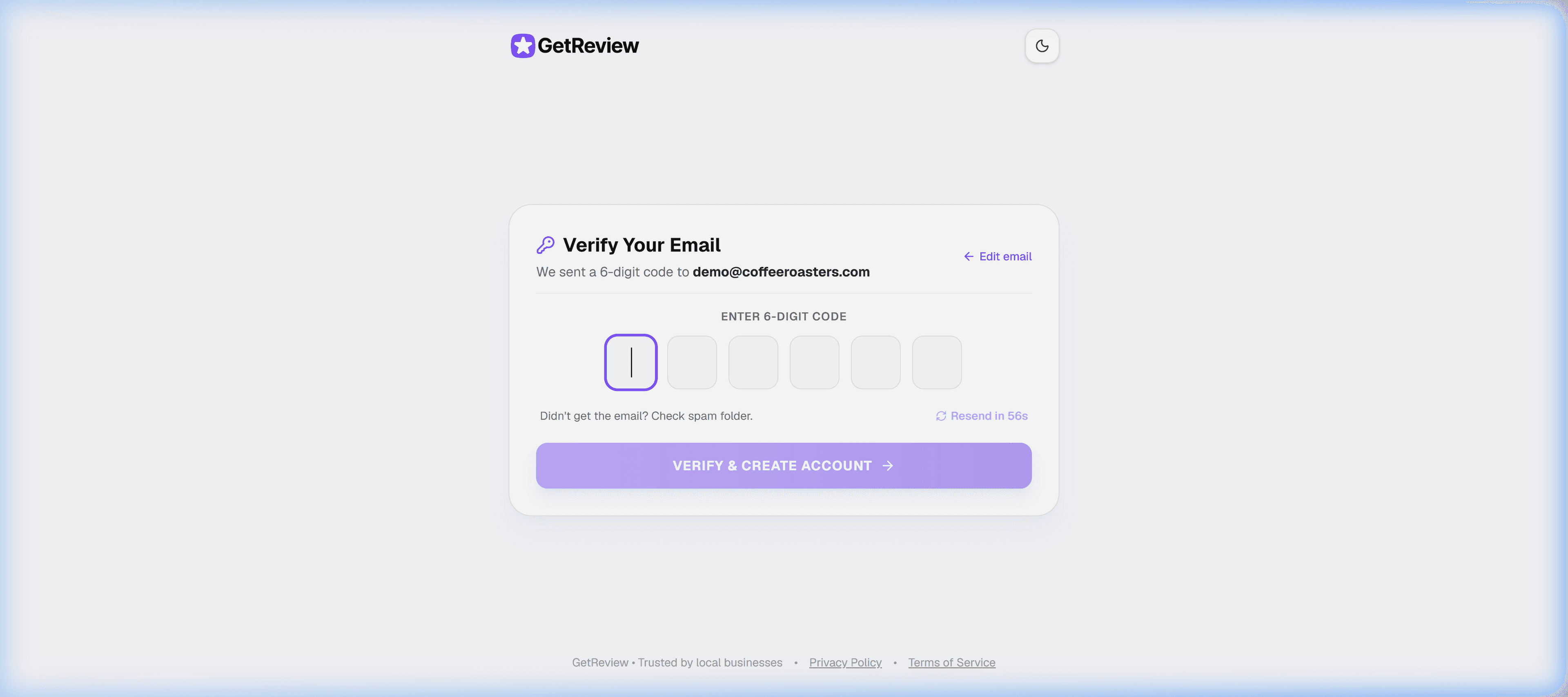
Auto-Paste Support
You can copy the 6-digit code from your email and paste (Ctrl+V) into the first box—all boxes fill automatically.
Check Spam & Promotions
If the email does not appear in your inbox within 10 seconds, check your Spam or Updates folder.
4What You Accept: Platform Rules & Compliance
By creating an account on GetReview, business owners and their team members agree to our terms of service, acceptable use standards, and Google review platform guidelines.
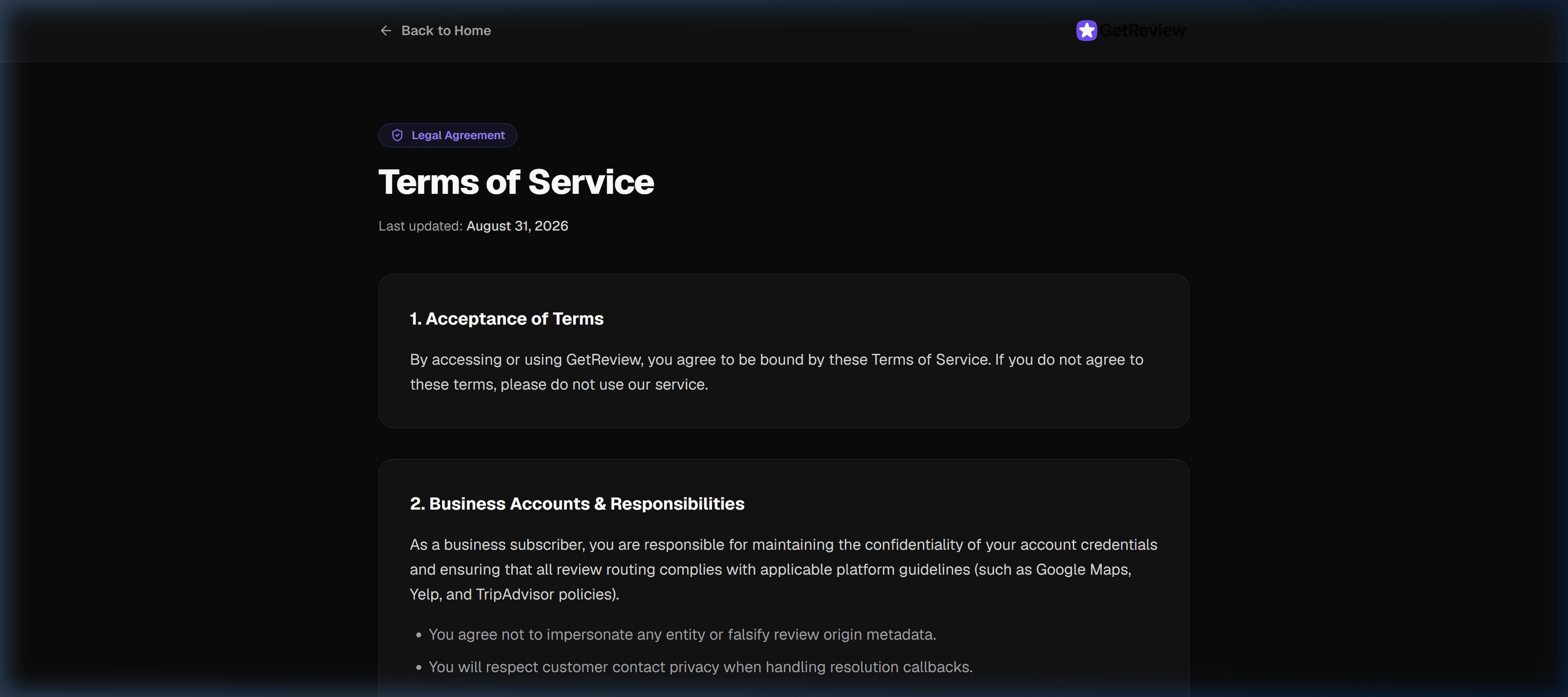
Google Reviews Policy Compliance & Fair Practice
GetReview is built to help local businesses collect authentic customer sentiment responsibly. Here is what is permitted vs. prohibited:
- ✓Direct satisfied 4 & 5-star guests directly to your official Google Maps profile.
- ✓Provide unhappy guests a private channel to share constructive feedback with your management.
- ✓Display tabletop NFC stands and QR coasters to invite every visiting guest to rate their experience.
- ✓Resolve negative customer grievances before they escalate to public dispute boards.
- ✗Paying customers or offering cash/gifts in exchange for 5-star Google ratings.
- ✗Fabricating fake customer reviews or running automated review bots.
- ✗Harvesting customer private emails to send unsolicited mass spam marketing.
- ✗Posting fake negative reviews about competitor establishments.
Fair Review Standards
Privacy, Data Protection & Account Security
GetReview adheres to strict zero-knowledge encryption protocols:
- Passwords: One-way hashed using industry-standard bcrypt encryption; never stored in plaintext.
- Customer Feedback Data: Private feedback submitted through Feedback Routing is routed directly to your configured Telegram bot or admin email and is never sold to third parties.
- GDPR / CCPA: Business owners may export or request complete deletion of their account data at any time from the account settings.
5Account Activation & Signing In
Once you submit the correct 6-digit OTP code, your account is securely created and activated! You can sign in immediately to start customizing your review card and downloading print assets.
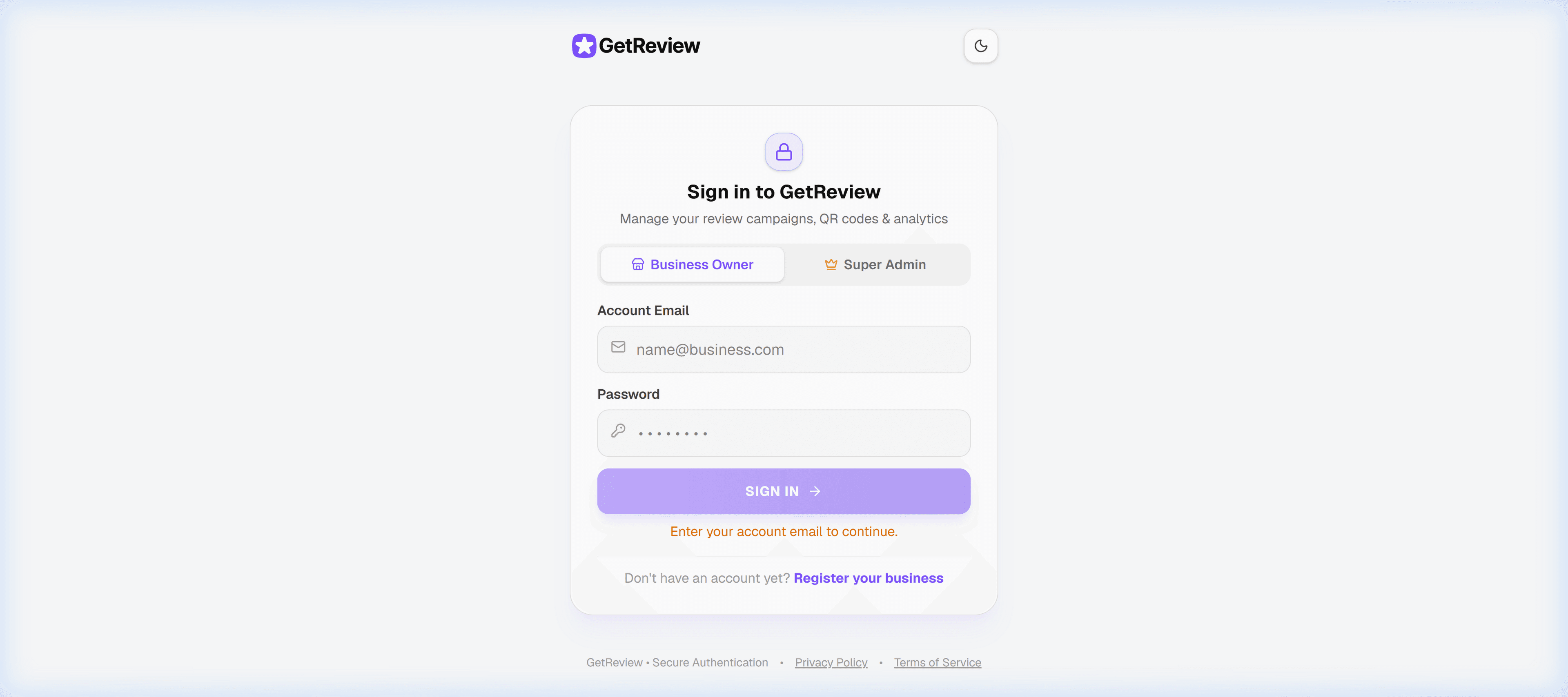
What Happens Next?
- Your account activates automatically upon OTP verification and checkout completion.
- You can log in at /login using your credentials.
- You will be welcomed into your Business Dashboard where you can link your Google Review URL, customize your review card design, and print your QR stands.
6Adding Team Members & Managers
Do your shift supervisors, restaurant managers, or front-desk staff need access to review alerts and QR codes? You don't need to share your primary owner password.
Manager Portal Access:
From your owner dashboard, you can create dedicated Manager accounts with custom usernames and passwords. Managers log in at /manager-login to view real-time sentiment alerts and download QR stand graphics without having access to billing or account deletion controls.
Frequently Asked Questions
Create your business account now
Takes 30 seconds to set up your feedback routing.