

Smart Feedback Routing & Dual-Routing Funnel
The engine behind GetReview. Sends happy customers straight to your Google Maps review page, and gives unhappy customers a private way to tell you what went wrong so you can fix it quickly.
1What is Feedback Routing?
Feedback Routing is GetReview's intelligent review routing system. Every time a customer interacts with your review card — whether via QR code, NFC tap, or your direct link — the system checks their rating in real time and decides which path they take.
Positive Route
4 – 5 Stars
Private Route
1 – 3 Stars
The Net Result
2How the Dual-Routing Works
The routing decision happens entirely on the server the moment the customer's rating is submitted. Here is what occurs inside GetReview in under 300ms:
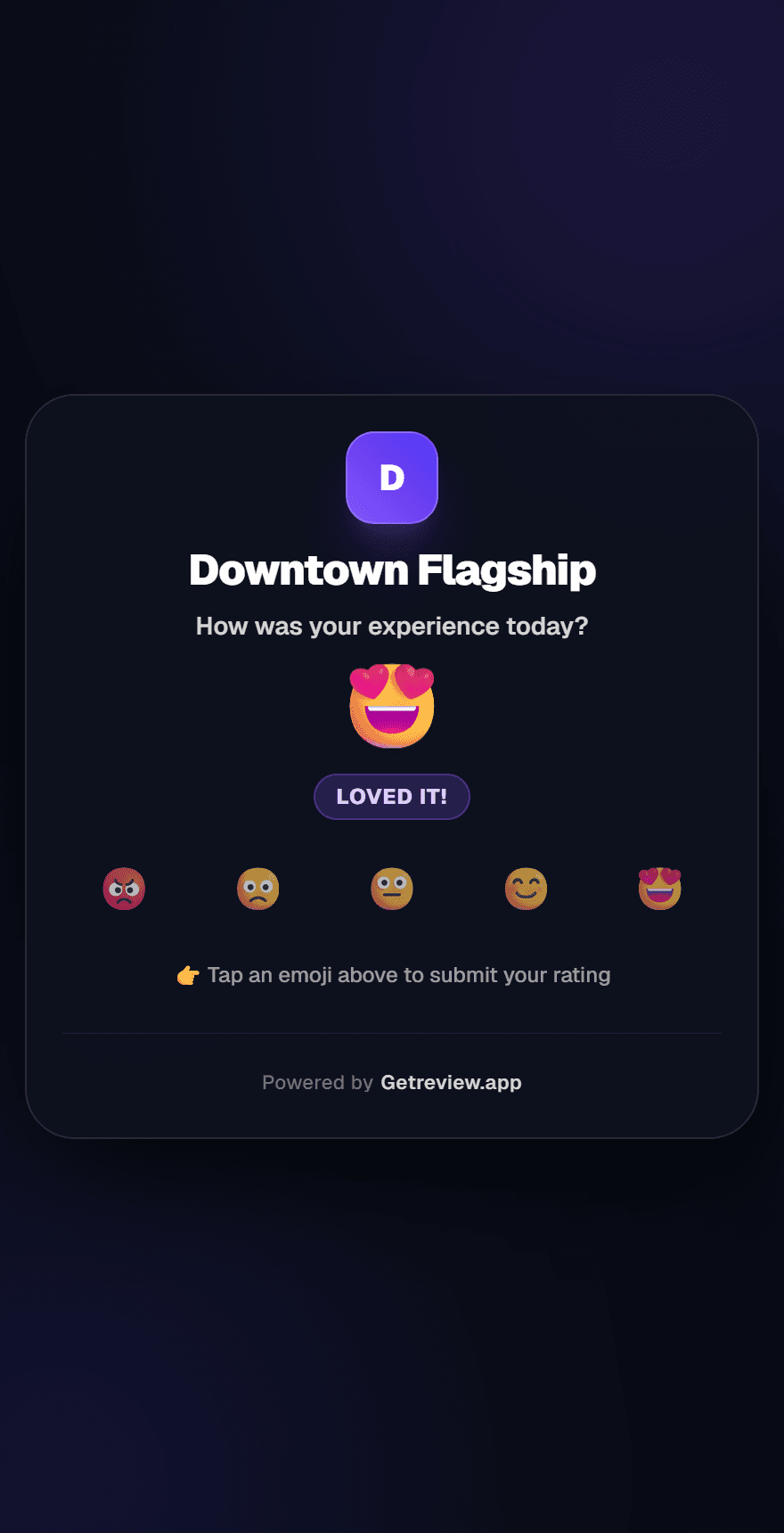
Customer taps a star rating
The customer opens your review link (via QR, NFC, or direct URL) and selects their star rating on the branded review card.
Rating is compared to the 4-star threshold
The system instantly checks the selected rating against the fixed 4-star threshold. 4 or 5 stars → positive route. 1, 2, or 3 stars → private-feedback route. This check happens client-side for near-instant UX.
Positive → Google Maps redirect
If the rating is 4 or 5 stars: the customer is redirected to your Google Maps review URL after a 1.3-second animated transition. The review is logged asynchronously so it does not delay the redirect.
Negative → Private feedback form
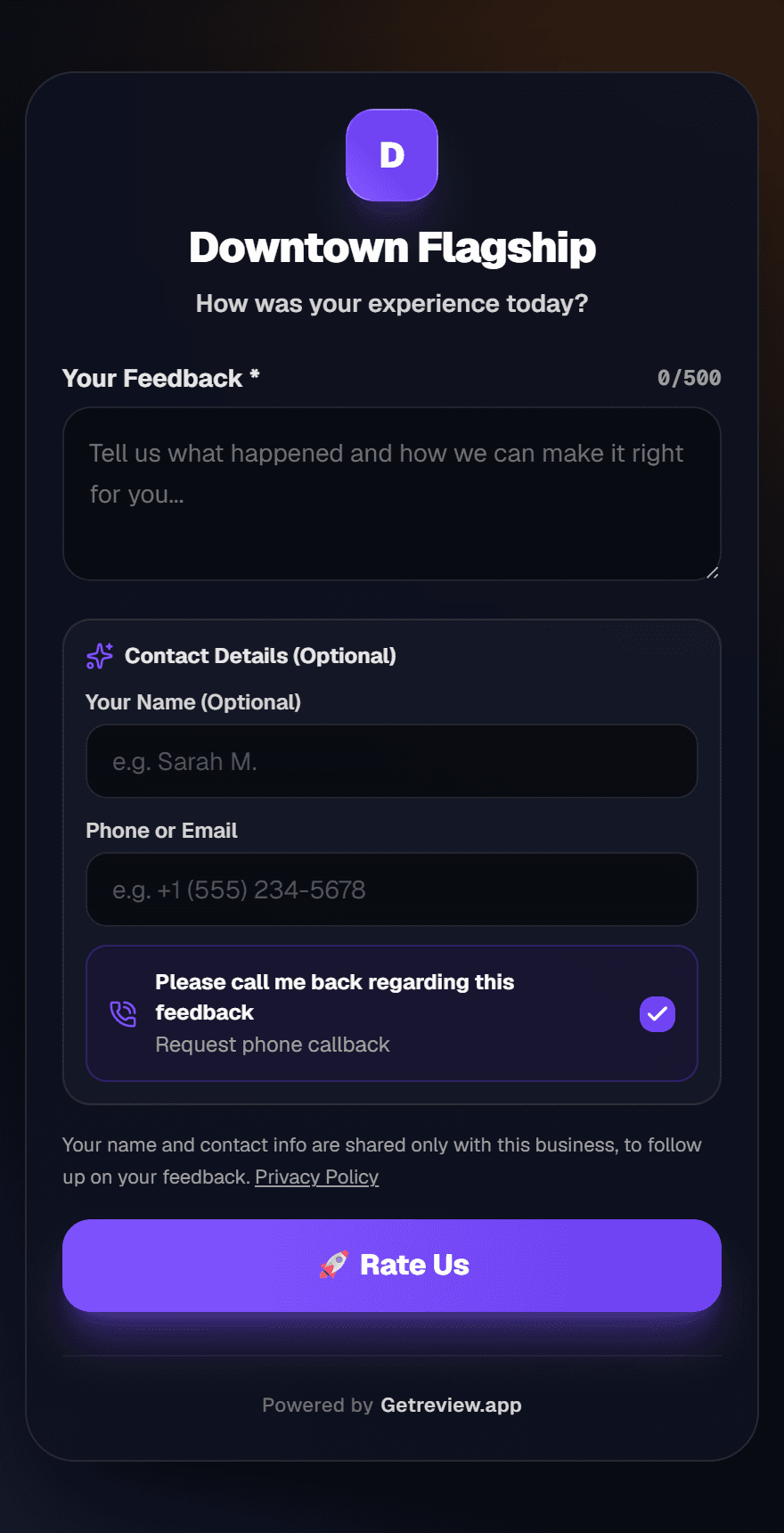
If rating < threshold: the review card transitions into a private feedback form. The customer can leave a written note, their name, contact info, and optionally request a callback.
Server saves & fires Telegram alert
The private feedback is saved to your dashboard (Private Inbox + Low Ratings tab) and a real-time Telegram notification is dispatched to your connected channel.
3The Customer Journey — Step by Step
Positive Flow — 4 or 5 Stars
When a customer gives a high rating, they are immediately guided to Google Maps in a seamless, branded experience.
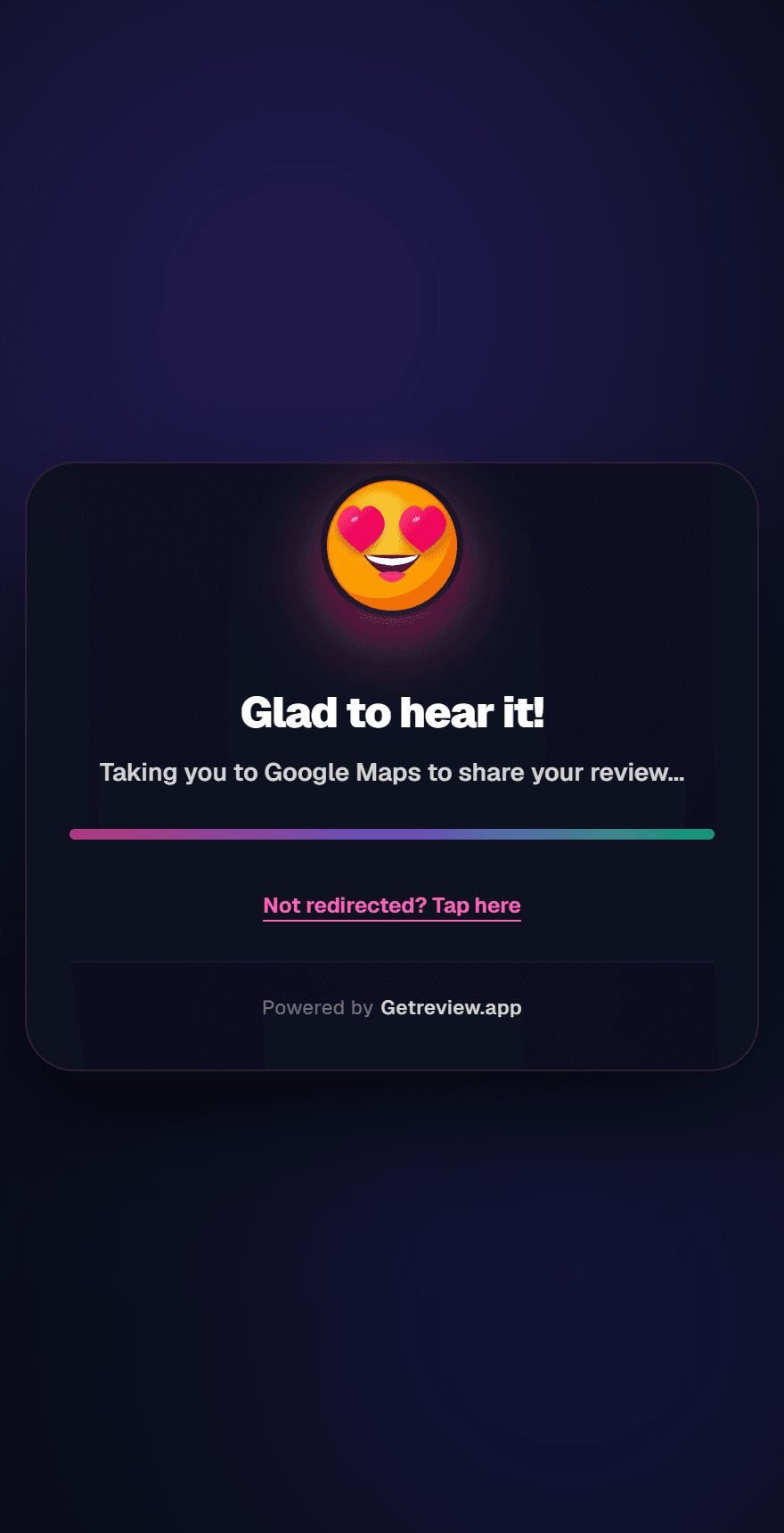
1.3-second animated transition
Customer sees a branded "Thank you, redirecting..." screen before Google Maps opens.
Opens Google Maps review form
Customer lands directly on your Google Maps listing, pre-loaded and ready to post their review.
Review logged in dashboard
The visit is saved to your All Reviews table with source tag (Direct Link / QR Scan / NFC Tap).
Private Flow — 1, 2, or 3 Stars
When a customer gives a low rating, the review card transforms into a private feedback form, with a clearly visible link to leave a public Google review instead.
Google review always available
A clearly visible link lets the customer post a public Google review instead of using the private form.
Written feedback captured
Their note (up to 500 characters) is saved to your Private Inbox and Low Ratings tab.
Callback request option
A toggle lets them ask to be called back. This appears in your inbox as a callback flag for your team.
Instant Telegram notification
Your connected Telegram channel receives all details the moment the customer submits.
4The Fixed 4-Star Threshold
The routing threshold is fixed at 4 stars and applies to every business on the platform. There is no dashboard setting to change it — the split is always the same:
Customer is redirected to Google Maps to leave a public review.
Customer is private — shown a private feedback form. They are also shown a link to review on Google Maps instead.
Not Configurable by Merchants
5Real-Time Telegram Alerts
Every private review instantly triggers a Telegram message to your connected group or channel. Your team can see the customer's rating, note, and contact info the moment it happens — no need to open the dashboard.
GetReview Notify Bot
bot
📬 DIRECT CUSTOMER FEEDBACK RECEIVED
🔴 Action Required: Callback Requested
The Daily Grind Cafe • ⭐⭐☆☆☆ (2/5)
👤 Customer: Alex Morgan
📞 Contact: +1 555-201-4488
⏰ Time: 2:14 PM
📩 Private feedback, for direct resolution
2:14 PM ✓✓
What the Telegram alert contains
Per-Branch Telegram Routing
6CRM Resolution & Reachout Workflow
Capturing private feedback is only half the job. GetReview features a structured 3-step CRM recovery system that guides your team from first contact through resolution and finally to a 5-star Google review.
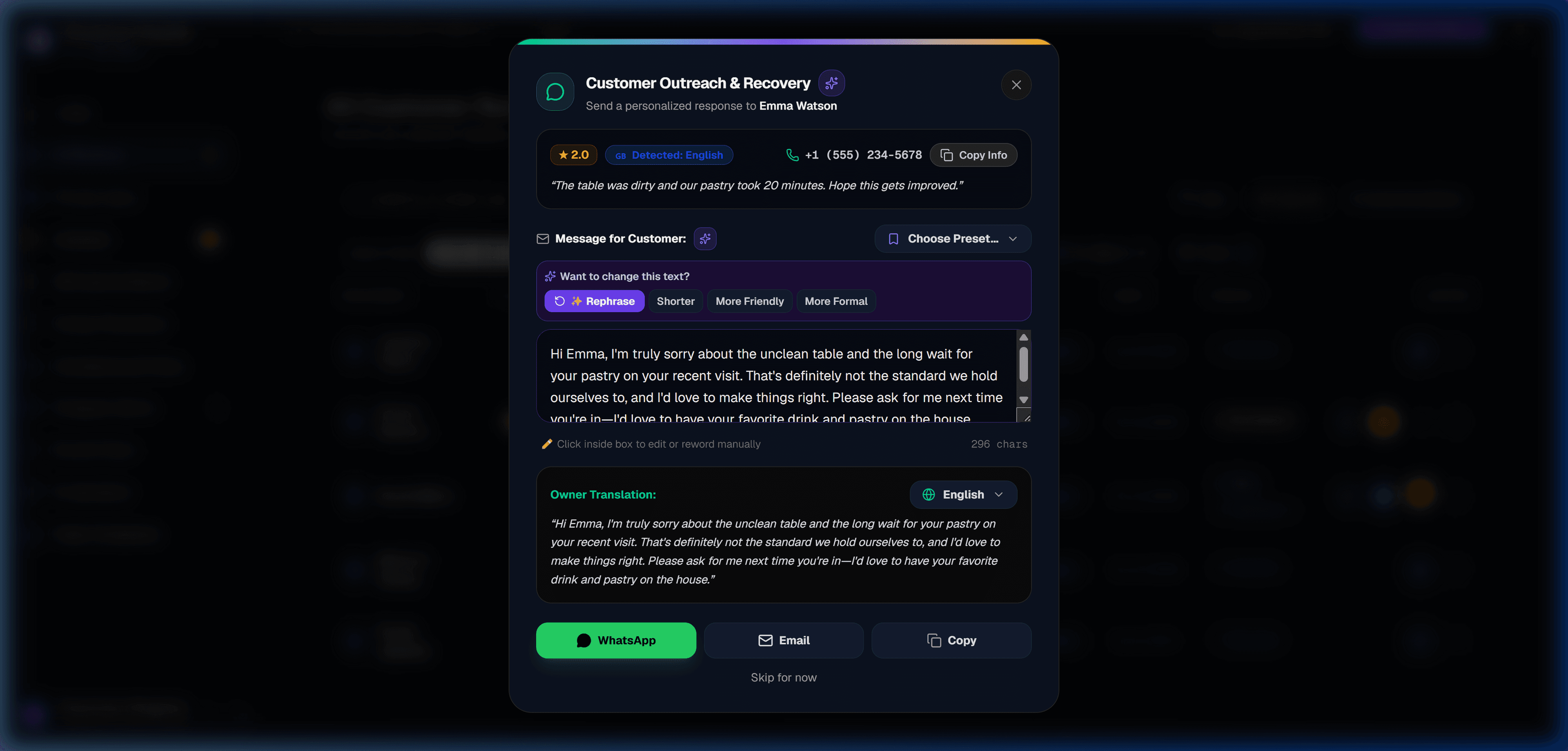
Step 1: Direct Customer Reachout & AI Recovery Modal
When an unhappy review arrives, click the chat bubble icon to launch the Customer Outreach Modal. Our AI Assistant auto-detects the customer's language, crafts an empathetic apology tailored to their complaint, and generates an instant Owner Translation view.
Google Compliance Guardrail
Step 2: Log Dispute Resolution Outcome & Action Proof
Clicking the checkmark icon opens the resolution menu to categorize the final status of the complaint and attach an Action Proof badge.
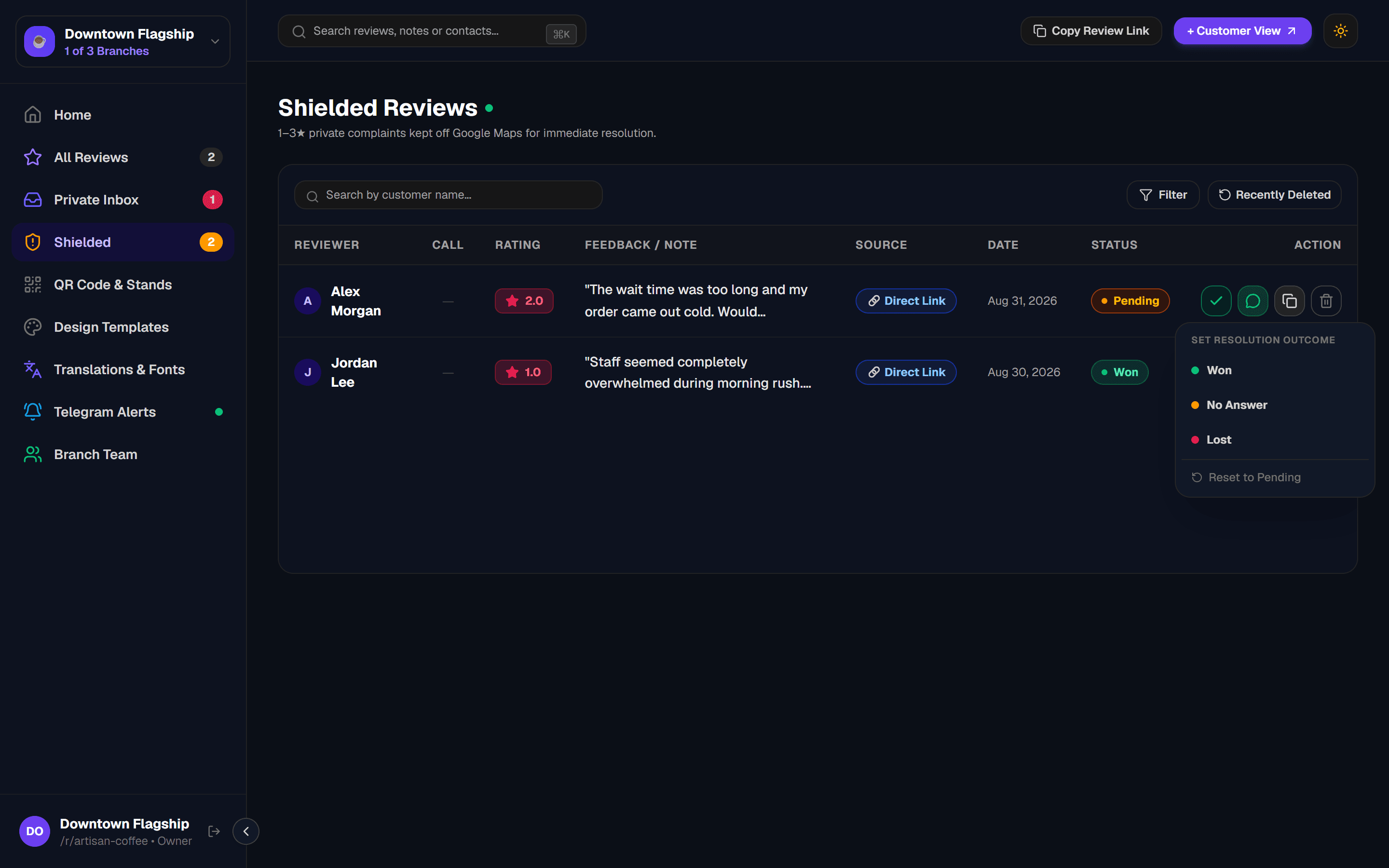
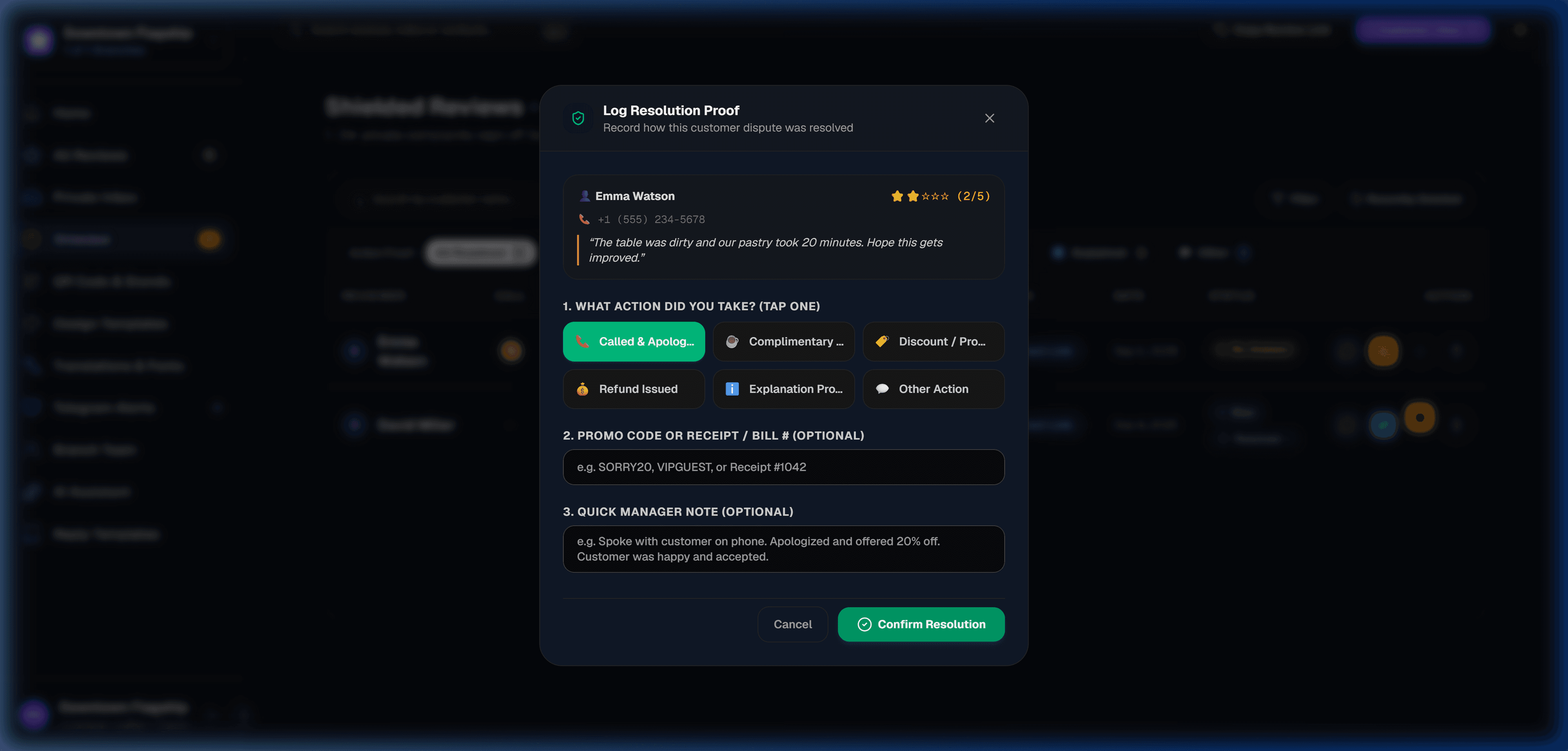
🛡️ Logging Action Proof
Selecting Won / Resolved opens the Log Resolution Proof modal. Managers log the exact remedy provided (such as a phone call, complimentary item, discount code, or refund) along with optional receipt numbers and notes.
Won
Issue resolved. Customer's complaint was addressed. Unlocks Step 3 Win-Back Star.
No Answer
Your team tried to reach the customer but received no response.
Lost
Resolution failed. The complaint could not be successfully closed.
Callback Tracking
⭐Step 3: 5★ Customer Win-Back & Google Review Invite
Turning an unhappy customer into a 5-star Google review is the ultimate retention win. When your team resolves a customer dispute and marks their review as Won, the gold Attention Star bounces gently to prompt staff to send the Win-Back Review Follow-up Modal.
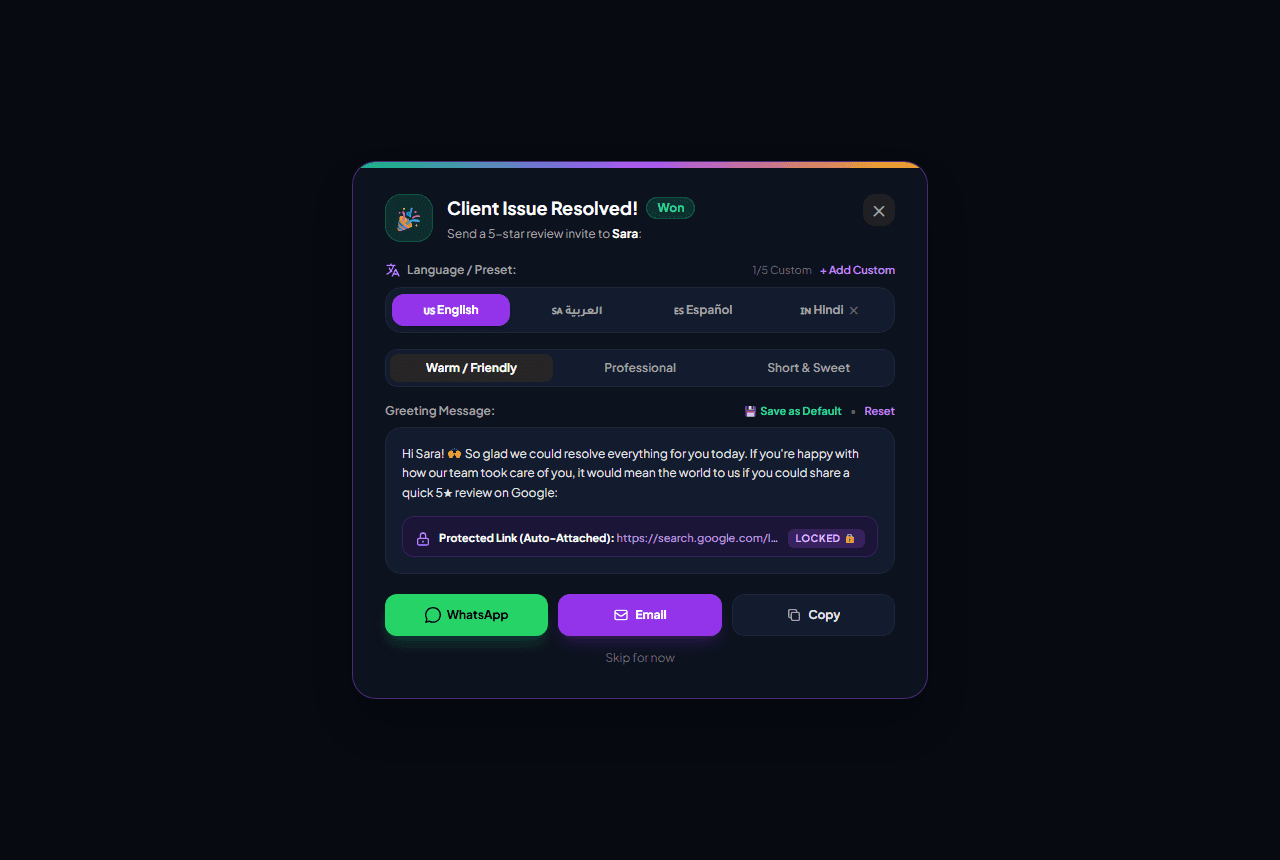
⭐Smart Attention Star
In the Reviews Table, any Won review that hasn't received an invite displays a gently bouncing gold star. Once WhatsApp, Email, or Copy is clicked, the star settles into a steady confirmed state.
🌐Custom Greetings & Macros
Supports customizable greeting templates and macros. Use the {name} tag to automatically inject the customer's real name into outgoing messages.